

Stencils
Stencils #
Caution
This guide is made for LÖVE 12.0! These stencil functions are not available in prior versions.
This chapter will go over stencils, which open up a number of advanced drawing techniques. Stencils allow us to only draw (or not draw) certain parts of a shape or texture to the window or active canvas. Similar to real-world stencils, they let us "cut out" only parts of an image, an effect that would be very hard to achieve otherwise.
0. TL;DR: Quick Start #
For those without enough time to read this entire chapter, or people returning for reference purposes, below are example usages of the stencil-related functions in LÖVE 12.
It is expected that first-time readers will not understand what is going on in these examples, as the rest of this chapter will build the knowledge needed to fully understand them.
0.1 setStencilMode Example #
-- choose a stencil value
local stencilValue = 123

-- start writing to the stencil buffer
love.graphics.setStencilMode("draw", stencilValue)

-- set every pixel touched by this command to `123`
love.graphics.circle("fill",
  0.5 * love.graphics.getWidth(),  -- x position of the circle
  0.5 * love.graphics.getHeight(), -- y position
  0.25 * love.graphics.getHeight() -- radius
)

-- enable stencil testing
love.graphics.setStencilMode("test", stencilValue)

-- draw a rectangle with stencil testing enabled
local margin = 10
love.graphics.rectangle("fill",
  margin, -- x position
  margin, -- y position
  love.graphics.getWidth() - 2 * margin, -- width
  love.graphics.getHeight() - 2 * margin -- height
)

-- disable stencil testing
love.graphics.setStencilMode("off")
0.2 setStencilState Example #
-- choose a stencil value
local stencilValue = 123

-- make it so we are now drawing to the stencil buffer
love.graphics.setStencilState("replace", "always", stencilValue)
love.graphics.setColorMask(false, false, false, false)

-- set every pixel touched by this command to `123`
love.graphics.circle("fill",
  0.5 * love.graphics.getWidth(),  -- x position of the circle
  0.5 * love.graphics.getHeight(), -- y position
  0.25 * love.graphics.getHeight() -- radius
)

-- make it so we are now testing against the stencil buffer
love.graphics.setStencilState("keep", "notequal", stencilValue)
love.graphics.setColorMask(true, true, true, true)

-- draw a rectangle with stencil testing enabled
local margin = 10
love.graphics.rectangle("fill",
  margin, -- x position
  margin, -- y position
  love.graphics.getWidth() - 2 * margin, -- width
  love.graphics.getHeight() - 2 * margin -- height
)

-- disable stencil testing
love.graphics.setStencilState("keep", "always", nil)
love.graphics.setColorMask(true, true, true, true)
0.3 Clearing the Stencil Buffer #
love.graphics.clear(
  false, -- do not clear color
  true,  -- clear stencil buffer
  false  -- do not clear depth buffer
)
0.4 Binding a Canvas with Stencils Active #
-- create a canvas
local canvas = love.graphics.newTexture(100, 100, {
  canvas = true
})

-- bind the canvas with stenciling enabled
love.graphics.setCanvas({
  canvas,
  stencil = true
})

-- draw here, stencils will work as expected

-- unbind the canvas
love.graphics.setCanvas(nil)
For those still with us, let's begin our exploration of stencils.
1. Stencil Buffer #
The main window (or currently bound canvas) will have what is called a stencil buffer. This is a special kind of texture that holds, on the graphics card, an unsigned integer value in [0, 255) for every pixel. Writing to the stencil buffer works the same as with the window or any canvas; when a draw command such as love.graphics.draw or love.graphics.circle is called, the object drawn will modify every pixel it touches. For normal textures and the main window, this modifies the RGBA values and thus the color of that pixel, for this reason it is also sometimes called a color buffer. Stencil buffers work the same way: we draw using a regular draw command, and any pixel touched will have a new value written to it. Instead of a color, it is the above-mentioned unsigned integer.
2. Stencil Compare Modes & Culling #
The main use for stencils is controlling whether or not a draw command (such as love.graphics.draw or love.graphics.circle) will actually modify the current window or canvas. Internally, LÖVE keeps a global value which is called the stencil compare mode. When a pixel is drawn, LÖVE will compare the value of the stencil buffer at that position using this compare mode, and if this operation returns true, the pixel will be drawn to. If it returns false, the pixel will not be modified - the window or canvas will not have its color at that position changed. This is why stencils are very powerful: much like a real-life stencil, they allow us to cut out certain parts of a drawable object, preventing only that part from being drawn, without the use of any additional geometry.
In LÖVE 12, there are two kinds of stencil-related API functions. setStencilMode is the more user-friendly option; it is great for simple operations. For more advanced applications, the much more complex setStencilState is available.
3. setStencilMode #
For now, we'll focus on setStencilMode. This function has the following signature:
--- @param mode love.graphics.StencilMode mode
--- @param value number stencil value
--- @return nil
love.graphics.setStencilMode(mode, v)
mode is of type love.graphics.StencilMode, which is an enum with the following values:
"off"- disable stenciling"draw"- enable drawing to the stencil buffer"test"- enable testing against the stencil buffer
If no mode is specified, the argument will default to "off".
v is an unsigned integer in [0, 255). If a float is given, it will be rounded down to the nearest integer. We need to make sure ourselves to not specify values outside this range, as setting the stencil value to, for example, 2045.23 will not cause an error - what exact value will be drawn to the stencil buffer in this case is deterministic but logically opaque and should thus be avoided.
3.1 Usage #
Usage of setStencilMode will often follow this pattern:
-- (1) choose a stencil value in [0, 255]
local stencilValue = 123

-- (2) enable drawing to the stencil buffer
love.graphics.setStencilMode("draw", stencilValue)

-- any draw code here, e.g. love.graphics.draw, love.graphics.circle, etc.

-- (3) enable testing against the stencil buffer
love.graphics.setStencilMode("test", stencilValue)

-- more draw code here

-- (4) disable stencil testing
love.graphics.setStencilMode("off")
Let's go through each of these lines step by step. Since we have no way to visualize the stencil buffer, it is vital to understand exactly how drawing works in this context.
3.1.1 Choosing a Stencil Value (1) #
First we need to choose what value subsequent modifications to the stencil buffer will write. Here we arbitrarily chose 123, which is an integer in the valid range [0, 255]. While we could simply not choose a stencil value and use the default 0, once we start using stencils more frequently, different usages will affect each other, since they all modify the same buffer and the buffer state is maintained within the same frame unless manually cleared. Because of this, each section should ideally have its own stencil value, as this minimizes side effects.
3.1.2 Enabling Stencil Draw (2) #
With setStencilMode("draw"), we are telling LÖVE that from now on, all draws will only affect the stencil buffer. This also means they will no longer modify the current canvas or window. Any draw command will only touch the stencil buffer, meaning they will be invisible when viewing the window. For every subsequent draw, until we change the stencil mode, we are now writing the value stencilValue to every pixel touched by our draw commands. Note that "touching" a pixel means any kind of modification - for example, when drawing a texture, every pixel touched by the texture will be overwritten, regardless of the texture's alpha value or blend mode. For this reason, it's best to stick to drawing simple shapes using love.graphics, or using meshes.
3.1.3 Enabling Stencil Testing (3) #
Now that we have modified the stencil buffer, we can tell LÖVE to enter the compare phase, which we mentioned earlier. From this point onwards, LÖVE will perform the following calculation: for a pixel at (x, y), get the current stencil value at (x, y) from the stencil buffer. If this value equals stencilValue, perform the draw as usual; otherwise, discard it. This is true for every pixel on the screen, not just the ones we wrote to earlier.
3.1.4 Disabling Stencil Testing (4) #
After drawing with stencil testing enabled is done, we need to manually disable stencil testing. To do this, we simply call love.graphics.setStencilMode("off").
3.2 A Working Example #
-- set background color
love.graphics.clear(0.5, 0.5, 0.5, 1)

local w, h = love.graphics.getDimensions()
local texture = love.graphics.newTexture("toast.png")
local textureWidth, textureHeight = texture:getDimensions()

-- choose a stencil value
local stencilValue = 123

-- make the entire stencil buffer 0
love.graphics.clear(
  false, -- do not clear color
  true   -- clear stencil
)

-- start writing to the stencil buffer
love.graphics.setStencilMode("draw", stencilValue)

-- set every pixel's stencil value touched by this command to `123`
love.graphics.circle("fill",
  0.5 * w,  -- x position of the circle
  0.5 * h,  -- y position
  0.5 * textureWidth,  -- radius
  5 -- number of outer vertices
)

-- enable stencil testing
love.graphics.setStencilMode("test", stencilValue)

-- draw the texture
love.graphics.draw(texture,
  0.5 * w - 0.5 * texture:getWidth(), -- x position of texture
  0.5 * h - 0.5 * texture:getHeight() -- y position
)

-- disable stencil testing
love.graphics.setStencilMode("off")
Here, we set the stencil buffer in a pentagonal region (a region shaped like a 5-sided regular polygon) to stencilValue (123 in this case), then draw a texture at the same position with stencil testing enabled.
First let's draw just the texture. This is what it looks like with no stencils applied:

This is what the love.graphics.circle call looks like if we render it to the window, again with no stencils applied:
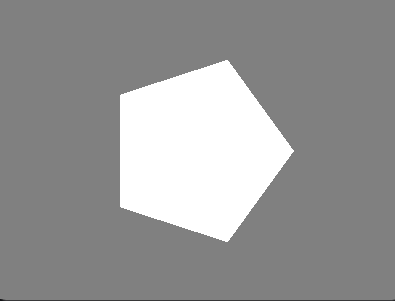
We now apply the stencil as shown above. What will the result look like?
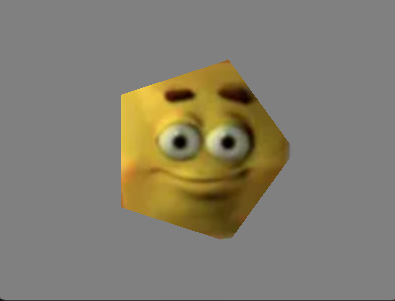
We see that only the center part of the texture was drawn; parts outside that pentagon were discarded. We only see the pentagonal part because when testing using setStencilMode, only pixels for which the stencil buffer has a value equal to stencilValue will be updated. The stencil buffer was reset to 0, we updated the value in the pentagonal area to 123, then told LÖVE to only draw pixels where the stencil buffer is equal to 123. Therefore, only where the pentagonal shape was drawn will parts of the texture be drawn as well.
This is a powerful result; drawing a texture clipped to a pentagon like this could otherwise only be achieved with a Mesh or a Shader. If we use geometry more complex than a simple pentagon, it becomes almost infeasible to only draw parts of the texture that overlap that geometry.
4. setStencilState #
While setStencilMode is easy to use and somewhat easy to understand, it has the following limitations:
- i) we can only overwrite the stencil value at a certain position, not perform any other kind of calculation on it
- ii) when drawing with testing active, only regions for which the stencil value is equal to our value will be drawn; no other comparison is supported
- iii) we can only draw to either the stencil buffer or the window, not both
setStencilState lifts all of these restrictions - at the cost of a much more complicated API. It is therefore a more advanced part of LÖVE, which we will try to make accessible in this chapter.
4.1 Signature #
setStencilState has the following signature:
--- @param action love.graphics.StencilAction how the stencil buffer will be modified
--- @param compareMode love.graphics.StencilCompareMode when testing, which equation will be used
--- @param value number stencil value
--- @return nil
love.graphics.setStencilState(
  action,
  compareMode,
  value
)
Let's also quickly look at a seemingly unrelated function, which will become important soon:
--- @param red boolean whether to render red component
--- @param green boolean whether to render green component
--- @param blue boolean whether to render blue component
--- @param alpha boolean whether to render alpha component
--- @return nil
love.graphics.setColorMask(
  red,
  green,
  blue,
  alpha
)
4.1 Stencil Action #
action, the first argument of setStencilState, takes a value of the enum love.graphics.StencilAction. This argument governs how the stencil buffer will be modified when we perform a draw action. Remember that only pixels touched by the draw command will have their corresponding stencil buffer value modified.
It can have one of the following values, where current is the value currently in the stencil buffer at the given position, v is the value given as the third argument to setStencilState, and new is the value the stencil buffer will have after modification.
| StencilAction | Behavior | Equation |
|---|---|---|
"keep" |
do not modify the stencil buffer | new = current |
"zero" |
replace the stencil buffer value with 0 |
new = 0 |
"replace" |
replace the stencil buffer value with v |
new = v |
"increment" |
add v to the stencil buffer value; if the new value would exceed 255, clamp it to 255 |
new = min(current + v, 255) |
"decrement" |
subtract v from the stencil buffer value; if the new value would be below 0, clamp it to 0 |
new = max(current - v, 0) |
"incrementwrap" |
add v to the stencil buffer value; if the new value would exceed 255, wrap it back into [0, 255) |
new = mod(current + v, 255)* |
"decrementwrap" |
subtract v from the stencil buffer value; if the new value would be below 0, wrap it back into [0, 255) |
new = mod(current - v, 255)* |
"invert" |
perform a bitwise not operation on the current value |
new = bnot(current)** |
* where mod(a, b) returns the modulo of a with b, equivalent to a % b in LuaJIT
** where bnot(a) returns the bitwise negation of a, equivalent to bit.bnot(a) in LuaJIT
With these actions, we have a breadth of ways to change how exactly the stencil buffer will be modified. Attentive readers may have noticed that setStencilMode("draw") internally sets the stencil action to "replace", since any pixel touched by the draw command will have its value overridden.
4.2 StencilCompareMode #
The second argument of setStencilState governs what formula is used to determine whether to draw or discard a pixel depending on the stencil buffer value at that position. Recall that for setStencilMode, only pixels for which the stencil buffer value was equal to the second argument of setStencilMode will be drawn. setStencilState gives us more options than just equality, where, again, current is the value currently in the stencil buffer at the pixel's position and v is the third argument given to setStencilState:
| StencilCompareMode | Behavior | Equation |
|---|---|---|
"always" |
always drawn | true |
"never" |
never drawn | false |
"equal" |
drawn if stencil buffer value equals v |
current == v |
"notequal" |
drawn if stencil buffer value does not equal v |
current ~= v |
"less" |
drawn if stencil buffer value is strictly less than v |
current < v |
"lequal" |
drawn if stencil buffer value is less than or equal to v |
current <= v |
"greater" |
drawn if stencil buffer value is strictly greater than v |
current > v |
"gequal" |
drawn if stencil buffer value is greater than or equal to v |
current >= v |
4.3 setColorMask #
Lastly, we need a way to control whether we are currently drawing to the screen or the stencil buffer. For this, we use setColorMask. This function takes four booleans which control whether the red, green, blue, and alpha components of the pixel will be affected by subsequent draw calls. Since, when drawing to the stencil buffer, all we need is to not update the color buffer of the window at all, we simply call:
love.graphics.setColorMask(false, false, false, false)
Now, if setStencilState is set, draw calls will only affect the stencil buffer, not the window. To start drawing to the window again, we simply call:
love.graphics.setColorMask(true, true, true, true)
-- equivalent to `love.graphics.setColorMask()`
After which drawing works as normal.
4.4 A Working Example #
Let's again use our texture and pentagon from before, except we now want the texture to be drawn everywhere except where the pentagon is. This is not possible to achieve with setStencilMode, since it is hardcoded to only use the equal compare mode. Since we do not want to draw where the stencil buffer value is equal, we choose notequal for the stencil compare mode.
-- set background color
love.graphics.clear(0.5, 0.5, 0.5, 1)

local w, h = love.graphics.getDimensions()
local texture = love.graphics.newTexture("toast.png")
local textureWidth, textureHeight = texture:getDimensions()

-- choose a stencil value
local stencilValue = 123

-- make the entire stencil buffer 0
love.graphics.clear(
  false, -- do not clear color
  true   -- clear stencil
)

-- start writing to the stencil buffer
love.graphics.setStencilState(
  "replace", -- stencil buffer value should be overwritten
  "always",  -- do not test against the buffer for now
  stencilValue
)

-- stop drawing to the main window's color buffer
love.graphics.setColorMask(false, false, false, false)

-- set every pixel's stencil value touched by this command to `123`
love.graphics.circle("fill",
  0.5 * w,  -- x position of the circle
  0.5 * h,  -- y position
  0.5 * textureWidth,  -- radius
  5 -- number of outer vertices
)

-- enable stencil testing
love.graphics.setStencilState(
  "keep",      -- do not modify the stencil buffer
  "notequal",  -- draw only where stencil buffer value is `not equal` to `123`
  stencilValue
)

-- start drawing to the color buffer again
love.graphics.setColorMask(true, true, true, true)

-- draw the texture
love.graphics.draw(texture,
  0.5 * w - 0.5 * texture:getWidth(), -- x position
  0.5 * h - 0.5 * texture:getHeight() -- y position
)

-- disable stencil testing
love.graphics.setStencilState("keep", "always", nil)
love.graphics.setColorMask() -- restore mask state (optional)
The texture and pentagon are in the same positions as before. What will this new setStencilState result look like?
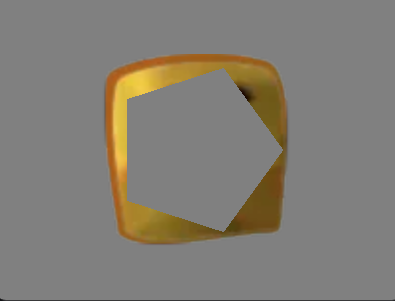
We see that a pentagonal slice has been cut out of our texture. This is expected. We reset the stencil buffer to 0 everywhere using love.graphics.clear, then overwrote the pentagonal area of the stencil buffer to 123. When drawing the texture, we told LÖVE to only draw where the buffer is not equal to 123. Since the buffer is 0 everywhere else, only the pentagonal area of the texture was excluded from being drawn.
This is a powerful result, as producing the above image using any other technique would be exceedingly complicated.
While this shows the most basic usage of setStencilState, closing out this chapter of the LÖVE cookbook are some even more advanced techniques.
4.4.1 Drawing to the Stencil Buffer and Window at the Same Time #
love.graphics.push("all") -- "all" to store stencil-related settings

-- start drawing to the stencil buffer
love.graphics.setStencilState(
  "replace", -- overwrite values in the buffer
  "always",  -- disable stencil testing
  stencilValue
)

-- also enable color mask
love.graphics.setColorMask(true, true, true, true)

-- draw calls here will affect both the stencil buffer and the window at the same time

love.graphics.pop() -- restore the previous stencil state
4.4.2 Testing Against the Stencil Buffer While Drawing to It #
love.graphics.push("all")

do
  local stencilValue = 123

  -- update the stencil buffer with `123`
  love.graphics.setStencilState(
    "replace", -- overwrite values in the buffer
    "always",  -- disable stencil testing
    stencilValue
  )

  love.graphics.setColorMask(false, false, false, false)
end

-- draw calls here will write `stencilValue` to stencil buffer

do
  local stencilValue = 124

  -- continue updating the stencil buffer, now with `124`
  love.graphics.setStencilState(
    "replace", -- overwrite values in the buffer
    "equal",   -- enable stencil testing
    stencilValue
  )

  -- draws here will write `124` to the
  -- stencil buffer while simultaneously testing if
  -- the value is equal to `123`
end

-- restore the graphics state
love.graphics.pop()
Where the do-end blocks' scoping ensure stencilValue is different in both setStencilState calls.
5. Example Game #
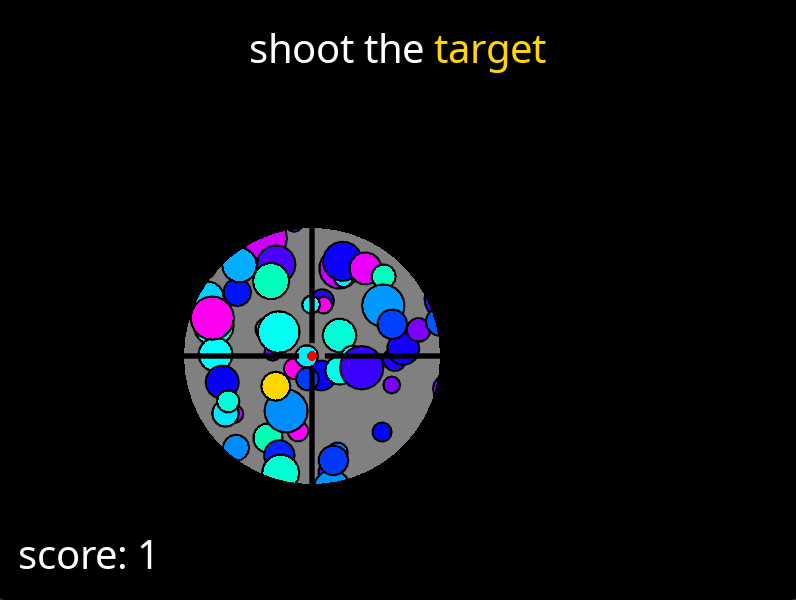
Below is a full main.lua for a game of "shoot the target", with stencils being used to draw the crosshair/spotlight - something that would be very hard to achieve without stencils. Take special note of love.draw at the top of the file, which uses setStencilState as discussed to stencil out the circle from the full black rectangle covering the screen.
local score = 0
local field = nil
local reinitializeField, checkSuccess, drawFieldBelow, drawFieldAbove, updateField

love.draw = function()
  drawFieldBelow()
  local x, y = love.mouse.getPosition()

  love.graphics.clear(false, true, false)

  local stencilValue = 123

  love.graphics.setStencilState("replace", "always", stencilValue)
  love.graphics.setColorMask(false, false, false, false)

  love.graphics.setColor(1, 1, 1, 1)
  love.graphics.circle("fill", x, y, field.crosshair.radius)

  love.graphics.setStencilState("keep", "notequal", stencilValue)
  love.graphics.setColorMask(true, true, true, true)

  love.graphics.setColor(0, 0, 0, 1)
  love.graphics.rectangle("fill", 0, 0, love.graphics.getDimensions())

  love.graphics.setStencilState("keep", "always", nil)
  love.graphics.setColorMask(true, true, true, true)

  drawFieldAbove()
end

love.update = function(delta)
  updateField(delta)
end

love.mousepressed = function(_)
  checkSuccess()
end

love.keypressed = function(_)
  checkSuccess()
end

love.load = function()
  reinitializeField()
  love.mouse.setVisible(false)
end

love.resize = function(w, h)
  reinitializeField()
end

reinitializeField = function()
  field = {
    circles = {},
    target = {},

    crosshair = {
      x = love.mouse.getX(),
      y = love.mouse.getY(),
      radius = 0,
      top = {},
      bottom = {},
      right = {},
      left = {}
    },

    revealElapsed = 0,
    revealDuration = 1,

    cooldownElapsed = 0,
    cooldownDuration = 2,

    foundMessageX = 0,
    foundMessageY = 0,

    titleX = 0,
    titleY = 0,

    scoreX = 0,
    scoreY = 0,

    font = love.graphics.getFont(),

    elapsed = 0
  }

  local screenW, screenH = love.graphics.getDimensions()

  local minRadius = 7
  local maxRadius = 21

  local spotlightRadius = 128

  local targetHue = 0.14
  local minHue = 0.45
  local maxHue = 0.85

  local minHomeRadius = 40
  local maxHomeRadius = 120
  local minVelocity = 0
  local maxVelocity = 20

  local cellSize = 64
  local minPerCell = 1
  local maxPerCell = 7

  local random = function(lower, upper)
    local ratio = love.math.random()
    return lower * (1 - ratio) + upper * ratio
  end

  local function hsvaToRgba(h, s, v, a)
    h = h * 360

    local c = v * s
    local h2 = h / 60.0
    local x = c * (1 - math.abs(math.fmod(h2, 2) - 1))

    local r, g, b

    if (0 <= h2 and h2 < 1) then
      r, g, b = c, x, 0
    elseif (1 <= h2 and h2 < 2) then
      r, g, b  = x, c, 0
    elseif (2 <= h2 and h2 < 3) then
      r, g, b  = 0, c, x
    elseif (3 <= h2 and h2 < 4) then
      r, g, b  = 0, x, c
    elseif (4 <= h2 and h2 < 5) then
      r, g, b  = x, 0, c
    else
      r, g, b  = c, 0, x
    end

    local m = v - c

    r = r + m
    g = g + m
    b = b + m

    return r, g, b, a
  end

  field.targetTextColor = { hsvaToRgba(targetHue, 1, 1, 1) }

  field.circles = {}

  local newCircle = function(x, y, radius, hue)
    return {
      x = x,
      y = y,
      homeX = x,
      homeY = y,
      radius = radius,
      noiseOffset = random(-10e6, 10e6),
      velocity = random(minVelocity, maxVelocity),
      homeRadius = random(minHomeRadius, maxHomeRadius),
      color = { hsvaToRgba(hue, 1, 1, 1) }
    }
  end

  local nRows = math.ceil(screenW / cellSize)
  local nColumns = math.ceil(screenH / cellSize)

  for rowI = 1, nRows do
    for colI = 1, nColumns do
      local nPerCell = love.math.random(minPerCell, maxPerCell)
      for i = 1, nPerCell do
        local x = random(
          (rowI - 1) * cellSize,
          (rowI - 0) * cellSize
        )

        local y = random(
          (colI - 1) * cellSize,
          (colI - 0) * cellSize
        )

        local radius = random(minRadius, maxRadius)
        local hue = random(minHue, maxHue)

        table.insert(field.circles, newCircle(
          x, y, radius, hue
        ))
      end
    end
  end

  local targetRadius = random(minRadius, maxRadius)

  local targetMinX = 0 + 2 * targetRadius
  local targetMaxX = screenW - 2 * targetRadius

  local targetMinY = 0 + 2 * targetRadius
  local targetMaxY = screenH - 2 * targetRadius

  local targetX = random(targetMinX, targetMaxX)
  local targetY = random(targetMinY, targetMaxY)

  field.target = newCircle(
    targetX,
    targetY,
    targetRadius,
    targetHue
  )
  field.target.homeRadius = maxHomeRadius

  field.crosshair.radius = spotlightRadius

  field.crosshair.left = {
    0 - field.target.radius, 0,
    0 - field.crosshair.radius, 0
  }

  field.crosshair.right = {
    0 + field.target.radius, 0,
    0 + field.crosshair.radius, 0
  }

  field.crosshair.top = {
    0, 0 - field.target.radius,
    0, 0 - field.crosshair.radius
  }

  field.crosshair.bottom = {
    0, 0 + field.target.radius,
    0, 0 + field.crosshair.radius
  }

  local font = love.graphics.newFont(40)
  local fontHeight = font:getHeight()

  field.shootTheText = "shoot the "
  field.targetText = "target"
  field.scoreText = "score: "

  local margin = 20

  local titleWidth = font:getWidth(field.shootTheText) + font:getWidth(field.targetText)
  field.titleX = math.floor((screenW - titleWidth) / 2)
  field.titleY = margin
  field.titleWidth = font:getWidth(field.shootTheText)

  field.scoreTextX = margin
  field.scoreTextY = math.floor(screenH - fontHeight - margin)

  field.font = font
end

function drawFieldBelow()
  if field.cooldownElapsed > 0 then
    love.graphics.clear(1, 0, 0, 1)
  else
    love.graphics.clear(0.5, 0.5, 0.5, 1)
  end

  love.graphics.setLineWidth(2)
  love.graphics.setLineStyle("smooth")

  local drawCircle = function(entry)
    love.graphics.setColor(0, 0, 0, 1)
    love.graphics.circle("line", entry.x, entry.y, entry.radius + 1)

    love.graphics.setColor(entry.color)
    love.graphics.circle("fill", entry.x, entry.y, entry.radius)
  end

  if field.cooldownElapsed <= 0 then
    for _, entry in ipairs(field.circles) do
      drawCircle(entry)
    end
  end

  drawCircle(field.target)
end

function drawFieldAbove()
  local x, y = love.mouse.getPosition()

  local lineWidth = 5
  love.graphics.push()
  love.graphics.translate(x, y)
  love.graphics.setColor(0, 0, 0, 1)
  love.graphics.setLineWidth(lineWidth)
  love.graphics.line(field.crosshair.top)
  love.graphics.line(field.crosshair.right)
  love.graphics.line(field.crosshair.bottom)
  love.graphics.line(field.crosshair.left)
  love.graphics.pop()

  love.graphics.setColor(1, 0, 0, 1)
  love.graphics.circle("fill", x, y, lineWidth)

  love.graphics.setFont(field.font)

  local offsets = {
    { -1, -1 },
    {  0, -1 },
    {  1, -1 },
    { -1,  0 },
    {  1,  0 },
    { -1,  1 },
    {  0,  1 },
    {  1,  1 },
  }

  love.graphics.setColor(0, 0, 0, 1)
  for _, offset in ipairs(offsets) do
    love.graphics.push()
    love.graphics.translate(math.floor(2 * offset[1]), math.floor(2 * offset[2]))
    love.graphics.print(field.shootTheText, field.titleX, field.titleY)
    love.graphics.print(field.targetText, field.titleX + field.titleWidth, field.titleY)
    love.graphics.print(field.scoreText .. score, field.scoreTextX, field.scoreTextY)
    love.graphics.pop()
  end

  love.graphics.setColor(1, 1, 1, 1)
  love.graphics.print(field.shootTheText, field.titleX, field.titleY)

  love.graphics.setColor(field.targetTextColor)
  love.graphics.print(field.targetText, field.titleX + field.titleWidth, field.titleY)

  love.graphics.setColor(1, 1, 1, 1)
  love.graphics.print(field.scoreText .. score, field.scoreTextX, field.scoreTextY)
end

function checkSuccess()
  local x, y = love.mouse.getPosition()
  local distanceSquared = (x - field.target.x)^2 + (y - field.target.y)^2
  if distanceSquared < field.target.radius^2 then
    if field.cooldownElapsed <= 0 then
      score = score + 1
      field.cooldownElapsed = field.cooldownDuration
    end
  end
end

function updateField(delta)
  field.elapsed = field.elapsed + delta

  local before = field.cooldownElapsed
  field.cooldownElapsed = field.cooldownElapsed - delta

  if before > 0 and field.cooldownElapsed <= 0 then
    reinitializeField()
  end

  if field.cooldownElapsed >= 0 then return end

  local minX, minY = 0, 0
  local maxX, maxY = love.graphics.getWidth(), love.graphics.getHeight()

  local updateCircle = function(circle, offset)
    local t = field.elapsed + circle.noiseOffset

    local xNoise = (love.math.perlinNoise(t + offset * 0.3 - 100) * 2) - 1
    local yNoise = (love.math.perlinNoise(t + offset * 0.3 + 100) * 2) - 1

    local targetX = circle.homeX + xNoise * circle.homeRadius
    local targetY = circle.homeY + yNoise * circle.homeRadius

    circle.x = circle.x + (targetX - circle.x) * delta * circle.velocity
    circle.y = circle.y + (targetY - circle.y) * delta * circle.velocity

    circle.x = math.max(circle.x, minX + circle.radius)
    circle.x = math.min(circle.x, maxX - circle.radius)
    circle.y = math.max(circle.y, minX + circle.radius)
    circle.y = math.min(circle.y, maxX - circle.radius)
  end

  for i, circle in ipairs(field.circles) do
    updateCircle(circle, i)
  end

  updateCircle(field.target, 0)
end